A FEW SIMPLE STEPS
Get started
- Create a note and choose JSON or import a .json file.
- Paste your JSON, then use Format if the source is hard to read.
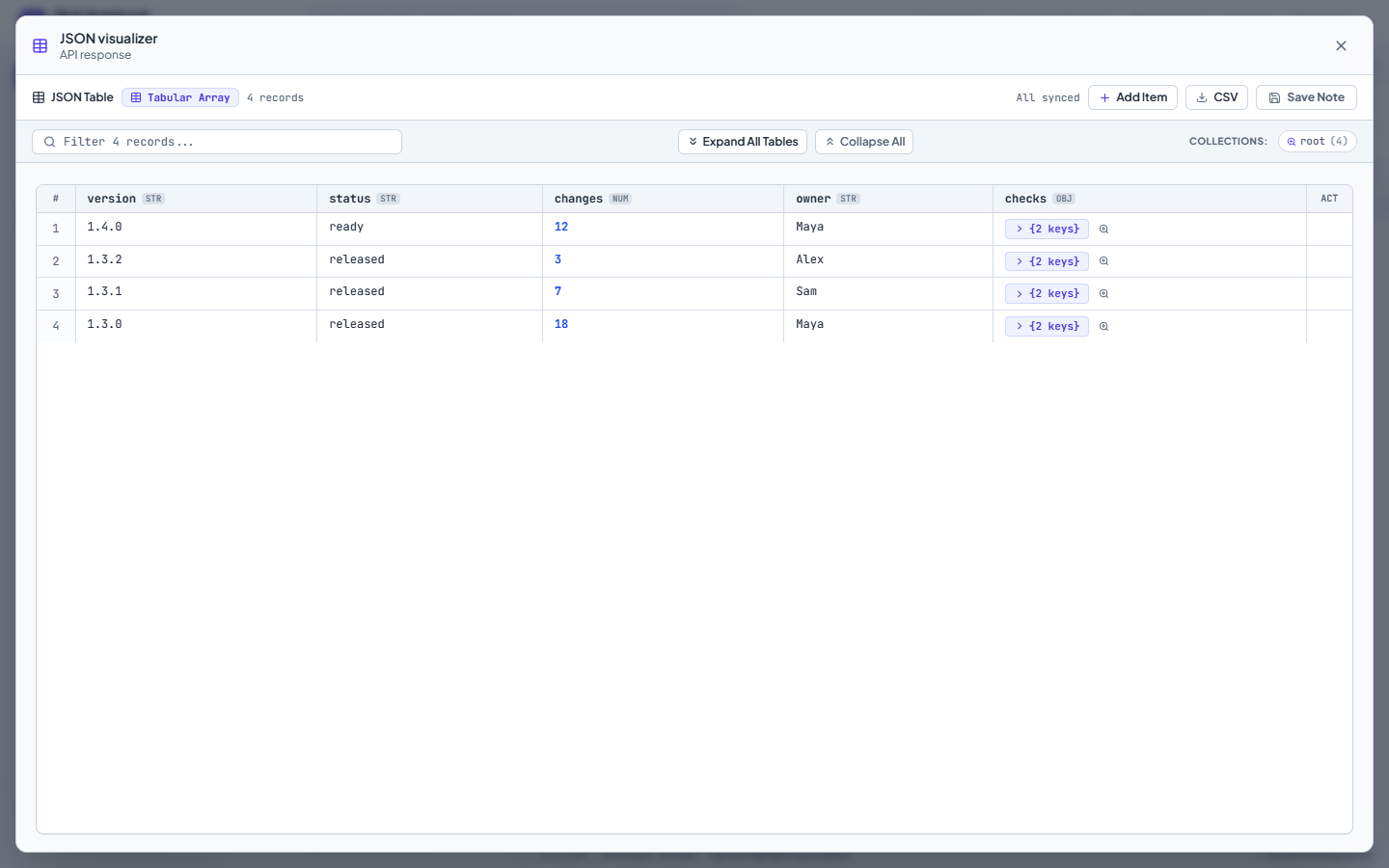
- Open the JSON visualizer to filter records, inspect nested values, or edit cells.
- Review and save your staged changes, or export the current table to CSV.
Open editor takes you to the draft on this page. Paste or open a source file, or choose Try this example. Save to notebook keeps a named copy with your notes. Your workspace style stays unchanged.
Format JSON and inspect nested data
Choose JSON mode to edit the source with syntax highlighting and use Format to make compact JSON easier to read. Open the JSON visualizer to see array records in rows and inspect objects without hunting through every brace.
Filtering searches keys and primitive values inside nested data. Open a nested object or array to look more closely, and export table data as CSV when you need to work with rows elsewhere.
Review edits before saving them back
Changes made in the visualizer are staged. Review them and use Save Note, Save to Pane A, or Save to Pane B to update the source you opened. If the source changed meanwhile, the app keeps your table edits and reports the conflict.
You can also place JSON in both comparison panes and choose Compare JSON values. This compares values and structure; a text comparison is useful when you care about whitespace or the exact source.
A few questions
Is my JSON uploaded for formatting?
The editor and JSON tools process the document in your browser. Your notes are saved in browser storage; a hosted notebook account is not required.
Is CSV export the same as the original JSON?
No. CSV represents table rows and columns. Keep the JSON source or a notebook backup when you need the original nested data.